
ripgrep Tutorial: Search Your Codebase in Milliseconds
Quick answer
ripgrep is a command line search tool that finds text across a whole codebase in milliseconds. It behaves like grep, but it skips hidden files and anything in .gitignore, and prints line numbers and colour by default. This post searches a small shop orders codebase with it and shows the one empty result that catches almost everyone.
A shop in Karachi keeps its orders in a CSV file and wants the Karachi ones. The file is small today, but the codebase around it keeps growing: a Python helper, a README, an archive of old orders, and soon invoices. Opening each file and pressing Ctrl+F works once, not ten times a day. grep can search every file at once, but it also digs through hidden folders and ignored files, and its output needs extra flags. ripgrep was built for this exact job: one command, fast results, and defaults that match how developers actually work.
What I would check before using it
My first check is whether I search often enough for a new tool. On a project with five files, plain grep is fine. Once the tree grows past a few dozen files, or I search all day, the speed and the cleaner output start to pay back. My judgement: install it if searching code is a daily habit, and skip it if you search once a week.
My second check is the ignore rules. ripgrep respects .gitignore and hidden files by default, which keeps results clean. The same rule can hide a file I forgot was ignored, so an empty result does not mean the text is gone. The Git Rebase: A Straight Line Instead of a Merge Commit post covers the Git side of this, and the worked example below shows the miss happening for real.
My third check is the regex flavour and the editor. The default engine is fast but has no lookaround or backreferences, so a pattern that leans on either fails, and -P switches to PCRE2 when I need those features. VS Code search already runs on ripgrep under the hood, so learning the flags pays off twice. The VS Code Explained: The Editor That Ate the World post covers the editor side, and the Linux Explained: The Operating System Running the World post covers command line tools on Linux.
My verdict, as judgement: use ripgrep as the default search for any codebase you open every day, and keep grep for scripts and systems without it. The recommendation flips if the project has no Git repo and no .gitignore, because then the main advantage disappears, or if the patterns depend on lookaround and PCRE2 is not available.
Four orders, one search, and the file ripgrep could not see
The demo is a small shop orders project: orders/orders.csv with four real orders, src/orders.py that totals them per city, a README, and archive/old-orders.csv with two older ones. The .gitignore file lists archive/, so Git and ripgrep both skip that folder.
The four orders: Sana and Hamza in Karachi, Daniyal in Lahore, Mahnoor in Islamabad.
id,customer,city,items,total
101,Sana,Karachi,kurta;dupatta,9800
102,Daniyal,Lahore,sneakers,13400
103,Mahnoor,Islamabad,handbag;wallet,11200
104,Hamza,Karachi,jacket;shalwar kameez,6750
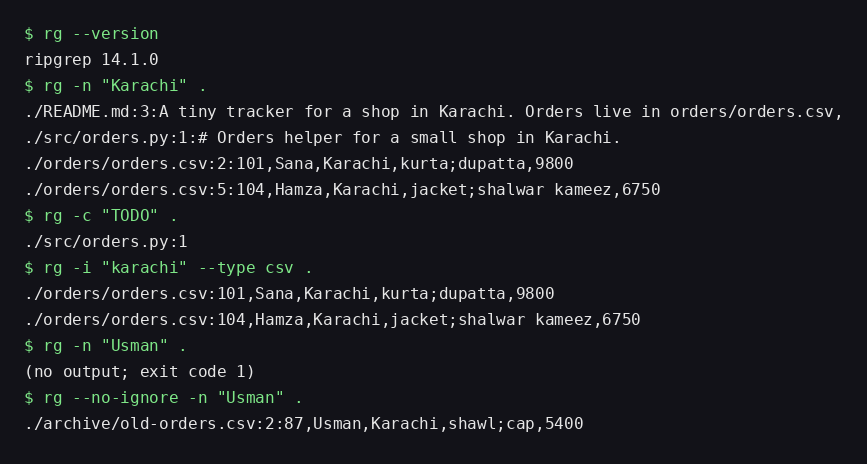
First, the basic search finds every Karachi order with file and line number:
$ rg -n "Karachi" .
./README.md:3:A tiny tracker for a shop in Karachi. Orders live in orders/orders.csv,
./src/orders.py:1:# Orders helper for a small shop in Karachi.
./orders/orders.csv:2:101,Sana,Karachi,kurta;dupatta,9800
./orders/orders.csv:5:104,Hamza,Karachi,jacket;shalwar kameez,6750
The -c flag counts matches per file, handy when you want to know where a marker lives:
$ rg -c "TODO" .
./src/orders.py:1
Two more flags do everyday jobs: -i ignores case, --type csv limits the search to CSV files:
$ rg -i "karachi" --type csv .
./orders/orders.csv:101,Sana,Karachi,kurta;dupatta,9800
./orders/orders.csv:104,Hamza,Karachi,jacket;shalwar kameez,6750
The -w flag matches whole words only, so "total" returns just the header, not "totals" or "city_totals":
$ rg -w "total" orders/orders.csv
id,customer,city,items,total
Then the thing that went wrong: the owner remembers an old order from Usman, in Karachi, for Rs 5,400:
$ rg -n "Usman" .
(no output; exit code 1)
Nothing. No error, no hint, just an empty result and exit code 1. The order is real, it sits in archive/old-orders.csv, but the archive folder is in .gitignore, so ripgrep skipped it. The fix is --no-ignore:
$ rg --no-ignore -n "Usman" .
./archive/old-orders.csv:2:87,Usman,Karachi,shawl;cap,5400
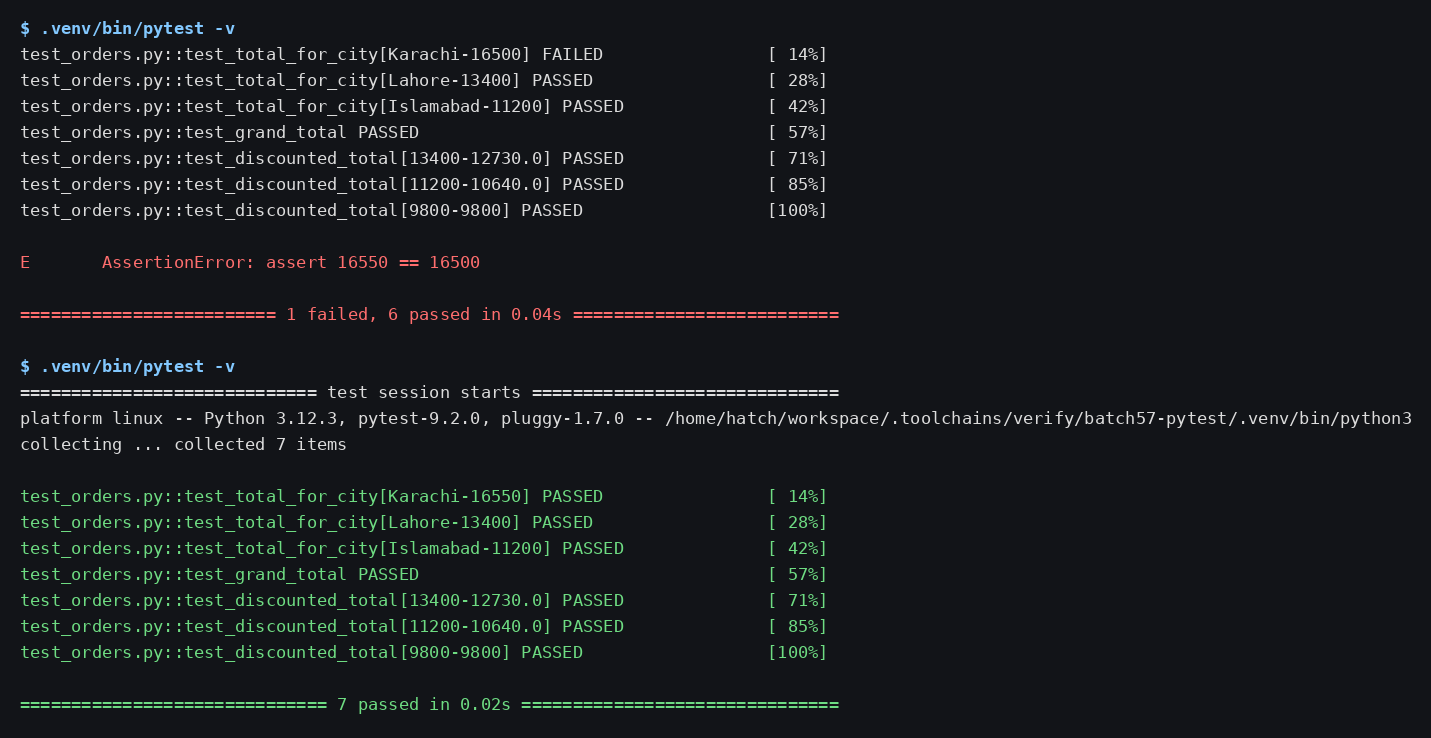
There it is: order 87, Usman, Karachi, Rs 5,400. The main file checks out too: the helper prints Karachi Rs 16,550, Lahore Rs 13,400, and Islamabad Rs 11,200. The search results and the totals agree, which is the point: a search you can trust beats one that is merely fast.
Common mistakes and how to fix them
First, searching with the wrong case. The symptom is an empty result with exit code 1 after rg "karachi", because the default search is case sensitive and the file holds "Karachi" with a capital K. The fix is the -i flag, or typing the word exactly as it appears.
Second, searching a file that .gitignore hides. The symptom is the same empty result for a name that is definitely in the project, like Usman in the archive folder. The fix is rg --no-ignore, or removing the folder from .gitignore.
Third, running ripgrep with no path in a script or piped command. The symptom is a command that seems to hang and prints nothing, because with no path and no terminal, ripgrep waits for input on stdin. The fix is to always pass a path, even just a dot: rg "Karachi" . returns at once.
Fourth, matching more than you asked for. The symptom is a long list of hits for rg "total", including city_totals and totals. The fix is -w for whole words only, or --type to limit the search to one kind of file.
Frequently Asked Questions
Is ripgrep a replacement for grep? Mostly, for searching code. ripgrep is faster on large trees and its defaults fit source code. grep stays the right choice in shell scripts and on systems without ripgrep.
Why did ripgrep skip my file? Usually because the file is hidden, listed in .gitignore, or inside an ignored folder. Run the same search with --no-ignore to check.
How do I search only one kind of file? Use --type, such as rg --type py "TODO" . for Python files. The -g flag with a glob, like -g "*.md", covers patterns ripgrep does not know.
What does exit code 1 mean? It means the search ran fine and found nothing. Exit code 0 means at least one match, and exit code 2 means something went wrong, such as a bad pattern or a missing folder.
What to remember
- ripgrep searches a whole tree in one command, with line numbers and colour by default.
- It skips hidden files and anything .gitignore lists, which keeps results clean but can hide real files.
- An empty result means exit code 1, not an error, so check case and ignore rules first.
- The -i, -w, -c, -l, and --type flags cover most everyday searches.
- Use --no-ignore when a search comes back empty for text you know is in the project.
Where this leaves you
ripgrep earns its place the first week you stop opening files one by one to find a name or a number. The demo proved it: one command found four Karachi matches across three files, two flags narrowed the search to the CSV rows that mattered, and the empty result for Usman turned out to be a .gitignore rule, not a missing order. Install it, run rg on a project you know, and watch which files it skips. The tool is only fast if you trust its answers, and trusting them starts with knowing what it leaves out.
Further reading
- ripgrep on GitHub
- ripgrep user guide
- GNU grep manual
- Linux Explained: The Operating System Running the World
- VS Code Explained: The Editor That Ate the World
- Git Rebase: A Straight Line Instead of a Merge Commit
- Markdown Explained: Writing That Becomes Any Format
Waqas Shahid is a software engineer from Karachi with more than 12 years of experience, including 6+ years in engineering leadership. He writes The Practical Developer.
Comments
Join the discussionNo comments yet. Be the first to comment.